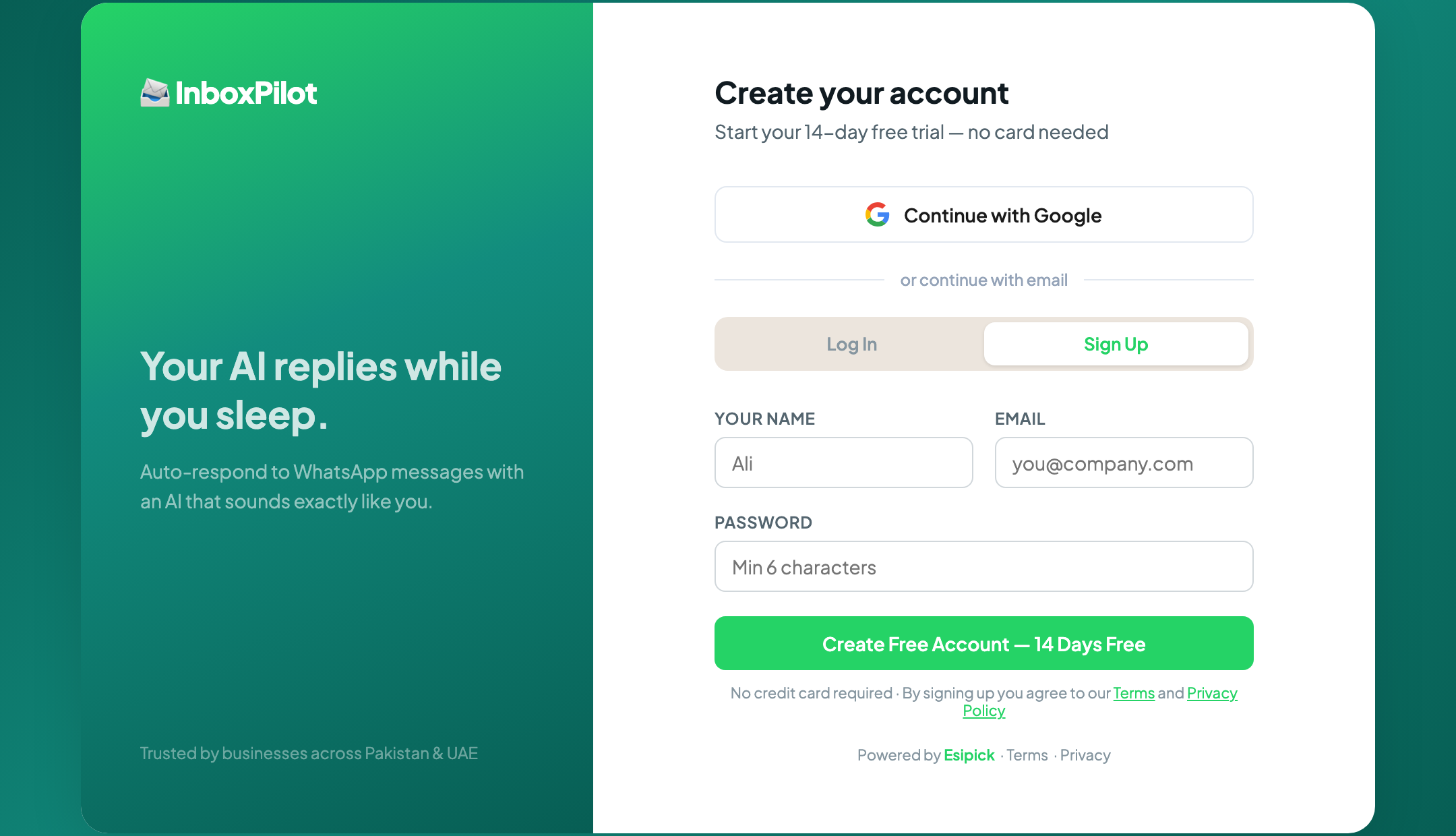
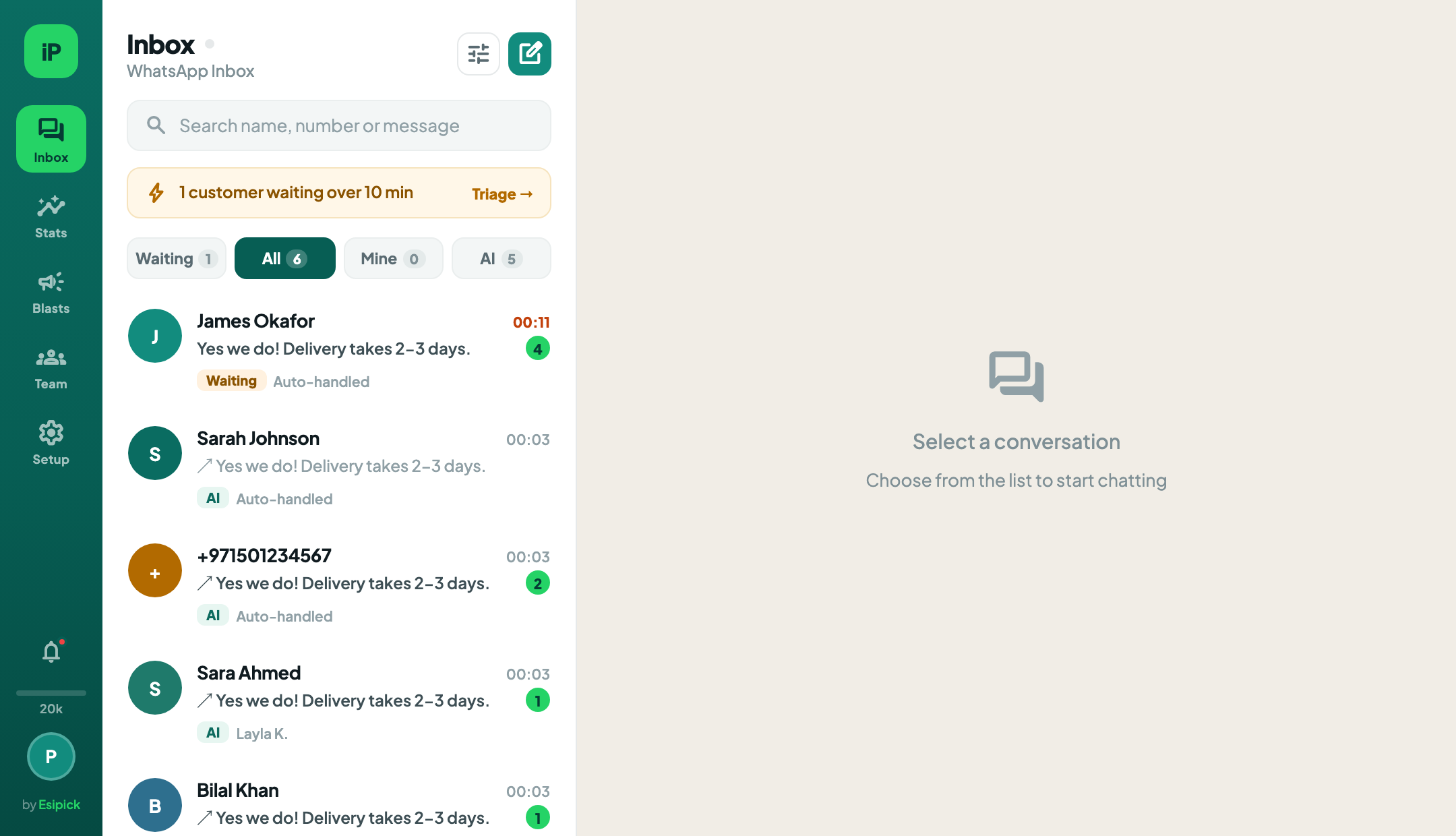
Sign up at inboxsaas.esipick.ai with your email and a password, or continue with Google for a faster start. It takes under two minutes.
- check_circleNo credit card is needed to start the free trial.
- check_circleUse a work email — it becomes the owner of the workspace.
lightbulb
Check your inbox for a verification email and click the link to activate your account.
2
Connect your WhatsApp number
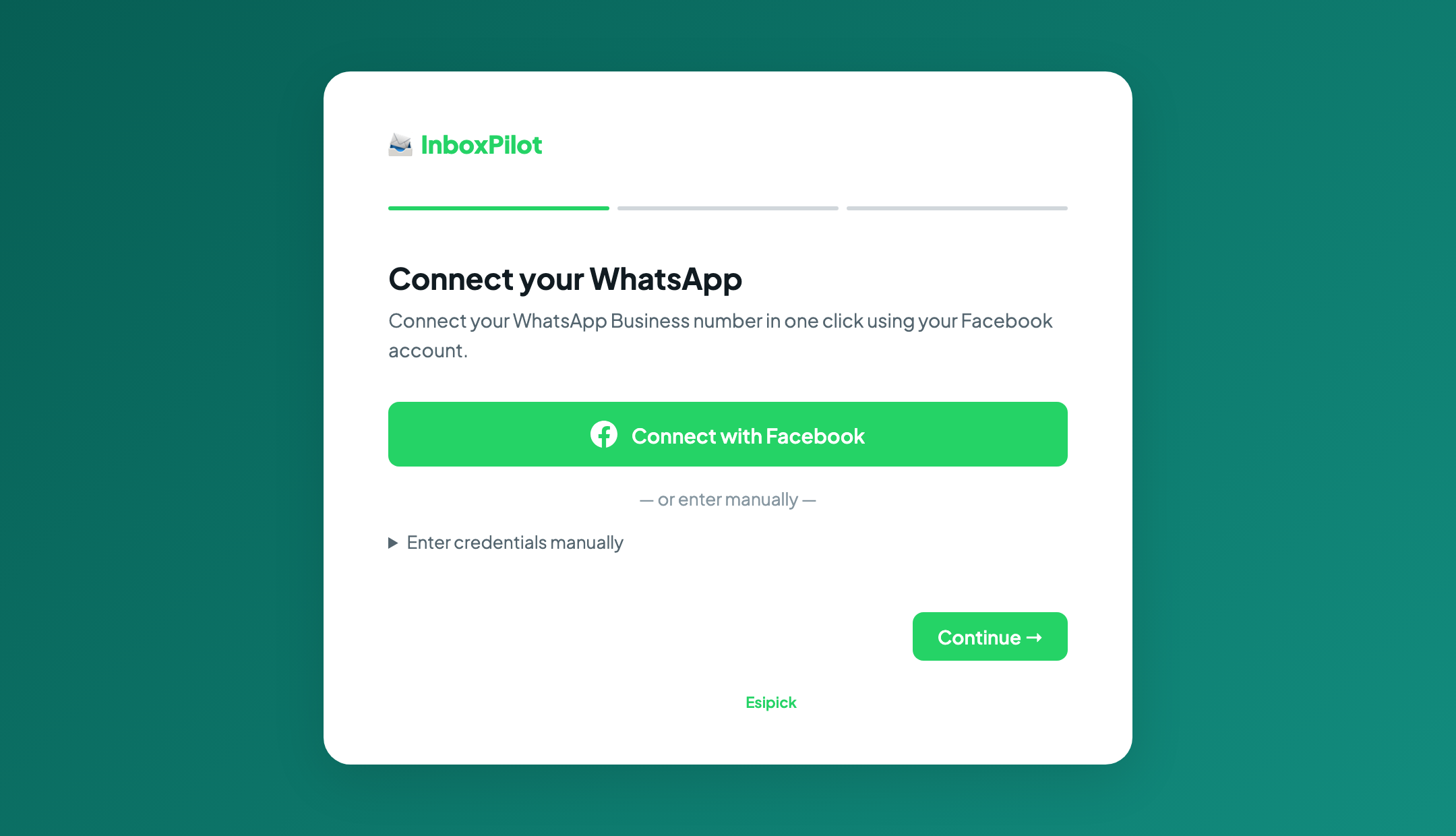
In Settings → WhatsApp, click Connect WhatsApp. A secure Facebook window opens where you authorise Replify to manage your WhatsApp Business Account.
- check_circleLog in with the Facebook account that manages your business page.
- check_circleSelect an existing WhatsApp Business Account, or create one — it is free.
- check_circleAdd the phone number you want to use. It must not already be registered in the WhatsApp app.
- check_circleVerify with the 6-digit code Meta sends by SMS or voice call.
- check_circleConfirm permissions so Replify can send and receive on your behalf.
warning
Your number cannot be active in the WhatsApp mobile app while it is connected here. If it is, delete that account from the app first — its chat history will be lost from the app.
lightbulb
Landline numbers work too — choose "Phone call" as the verification method instead of SMS.
3
Configure your AI persona
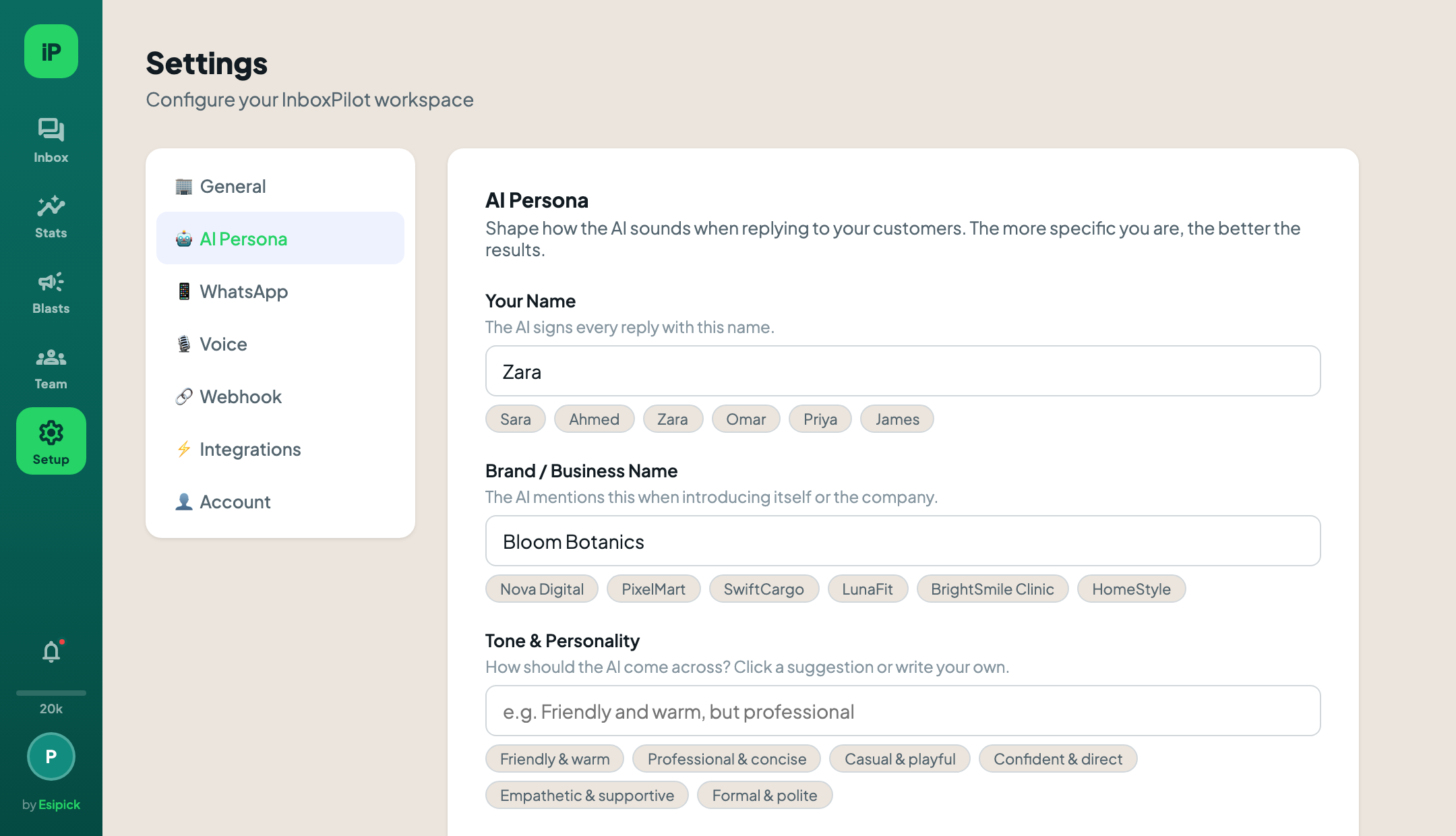
In Settings → AI, tell the AI who it is, what you sell and how to respond. The more detail you give, the better the replies.
- check_circleBusiness name and the name the AI signs off as.
- check_circleProducts, prices worth quoting, delivery areas and return rules.
- check_circleWhat to say when it is unsure — used instead of guessing.
- check_circleReply speed and how many AI replies before a human takes over.
lightbulb
Be specific about prices and delivery areas. Vague input is the single biggest cause of weak replies.
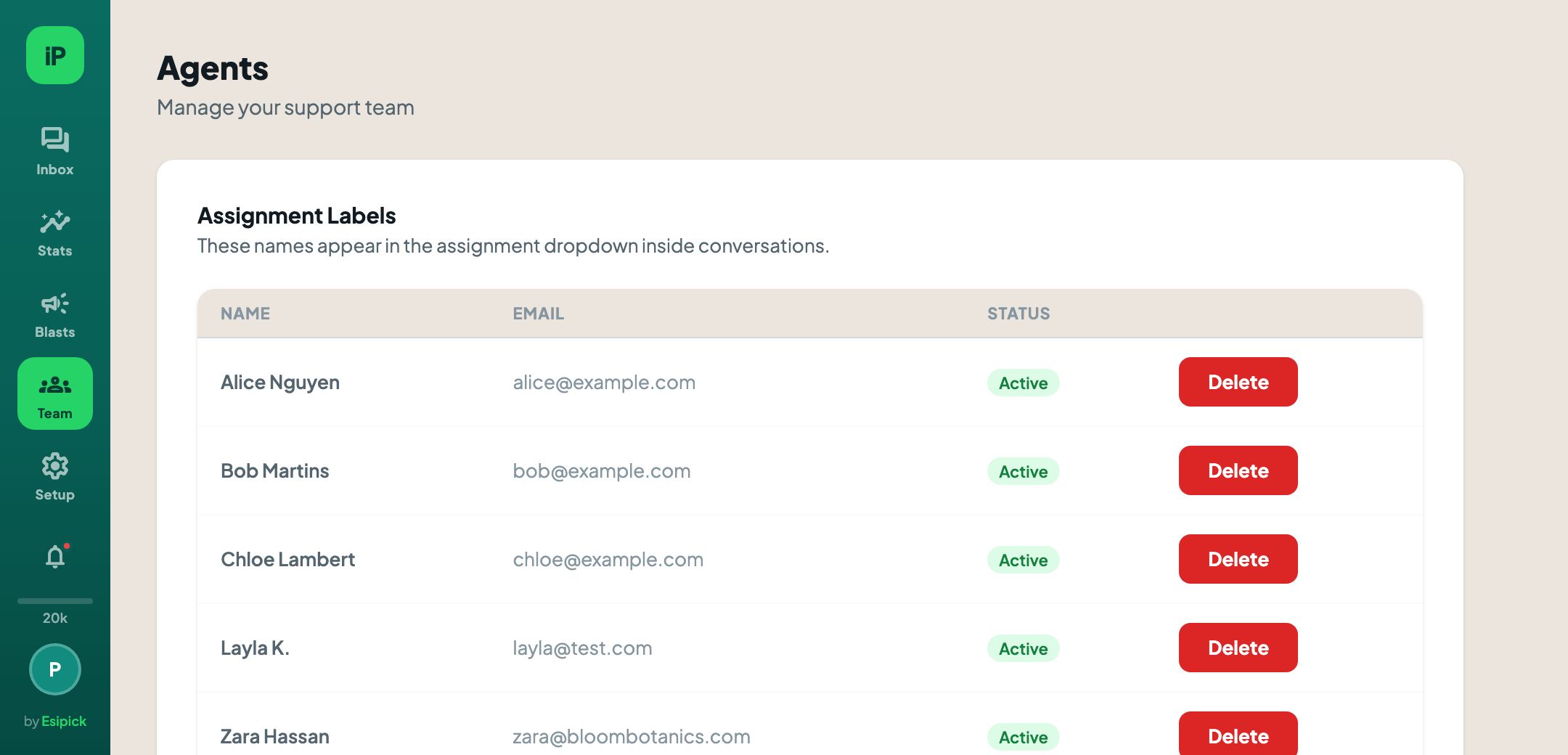
Team members log in and reply to conversations. Assignment labels are names without a login, useful for shop-floor staff.
- check_circleInvite by email — members can reply but cannot change AI settings or billing.
- check_circleTurn on auto-assign to round-robin new threads across whoever is online.
- check_circleCreate labels for people who never log in but need to own a thread.
5
You are live — start messaging
Send a test message from your own phone. It should land in the inbox within a couple of seconds, with an AI reply behind it.
- check_circleWatch the Waiting filter — anything sitting there over 10 minutes needs a human.
- check_circleSwitch any thread to Human mode from the chat header at any time.
- check_circleCheck Stats at the end of the day for first-reply time and AI share.
That is the whole setup
Every new WhatsApp message now gets an instant reply, and anything the AI cannot answer lands in Waiting for your team.
Open the inbox
arrow_forward
Common questions
Will my customers know they are talking to an AI?
expand_more
Only if you tell them. Every AI reply is marked inside your inbox so your team can see it, but the customer sees a normal WhatsApp message. Many businesses add a line to the persona introducing the assistant by name.
What happens when the AI does not know something?
expand_more
It uses your fallback line instead of inventing an answer, and the thread moves to Waiting so a person can take over.
Can I use my existing WhatsApp Business number?
expand_more
Yes, as long as it is registered on the WhatsApp Business Platform. A number cannot be used in the WhatsApp Business app and the Cloud API at the same time.
What counts as an AI reply?
expand_more
Every message the AI sends. Replies your team types are unlimited on all plans, including Free.
Can I export my data?
expand_more
Yes — contacts as CSV and everything as JSON, at any time, from Settings.